
Add a Frequently Asked Question
Step 1
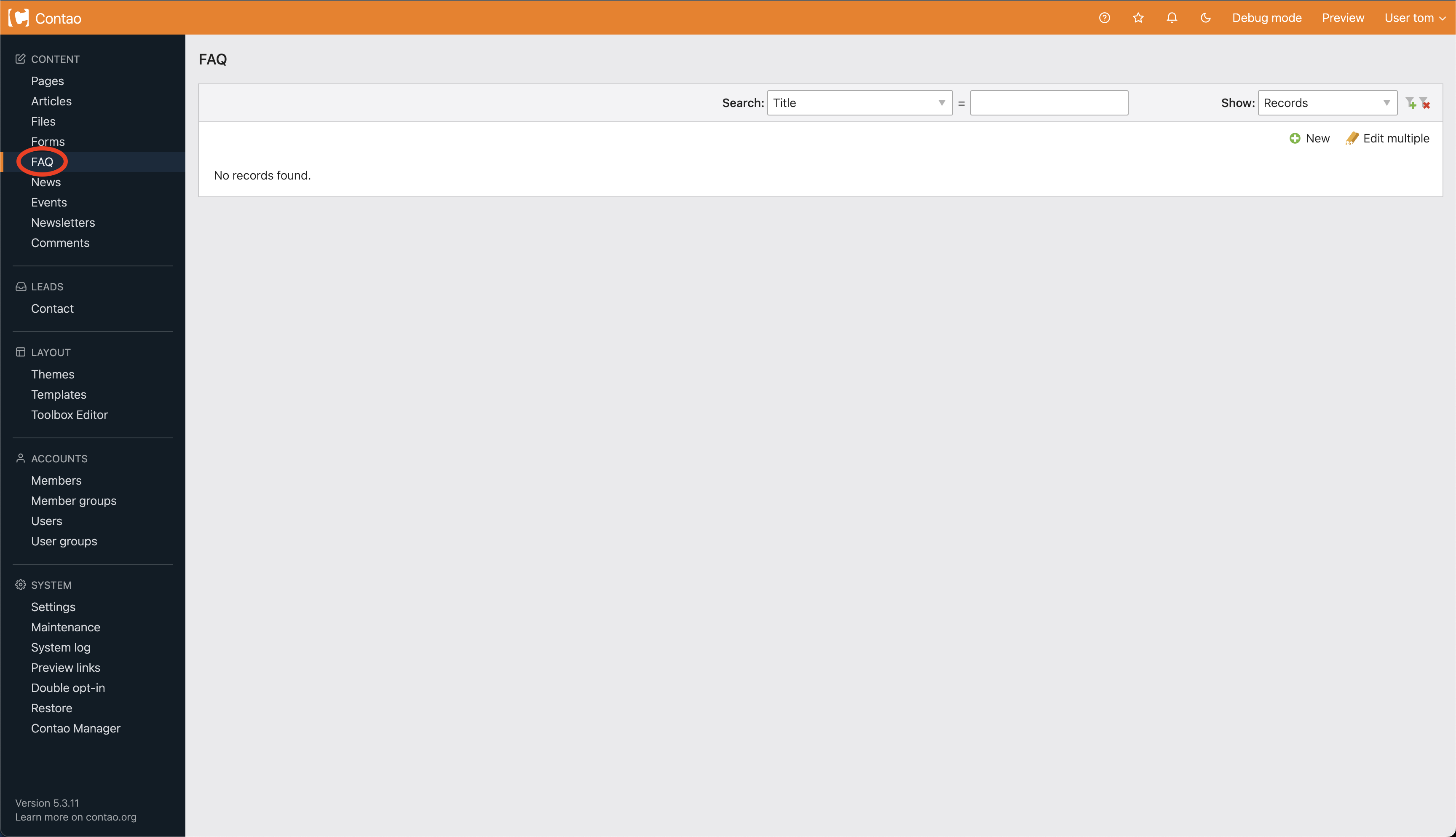
Choose FAQ from the navigation (circled below).
Step 2
You will be brought to the FAQ homepage. Choose the FAQ category you want to add your question to by clicking on the edit icon  (circled below). You may only have one category.
(circled below). You may only have one category.
Step 3
After choosing the edit icon, click new question (circled below).
Step 4
Once you choose new question, arrow icons will appear on the right. These icons will allow you to place your new question in different spots on your FAQ list (circled below).
 Click this arrow to paste the new question after a previously created question.
Click this arrow to paste the new question after a previously created question.Step 5
Next you will be brought to a page to fill in your question and answer. Fill out each required field, click publish the FAQ and then save and close at the bottom of the page.
Question: Enter the the question for your FAQ
FAQ Alias: The name of the page in the url. There cannot be any spaces. Leave this blank for the system to create the alias from the title.
Answer: This is where you put the answer to your question.
Add an image: You can add an image here.
Add an enclosure: Add one or more downloadable files to the news item.
Publish FAQ: Turn this on or off to make the FAQ show up on your website.
Question: Enter the the question for your FAQ
FAQ Alias: The name of the page in the url. There cannot be any spaces. Leave this blank for the system to create the alias from the title.
Answer: This is where you put the answer to your question.
Add an image: You can add an image here.
Add an enclosure: Add one or more downloadable files to the news item.
Publish FAQ: Turn this on or off to make the FAQ show up on your website.