
Create Articles for Pages
Step 1
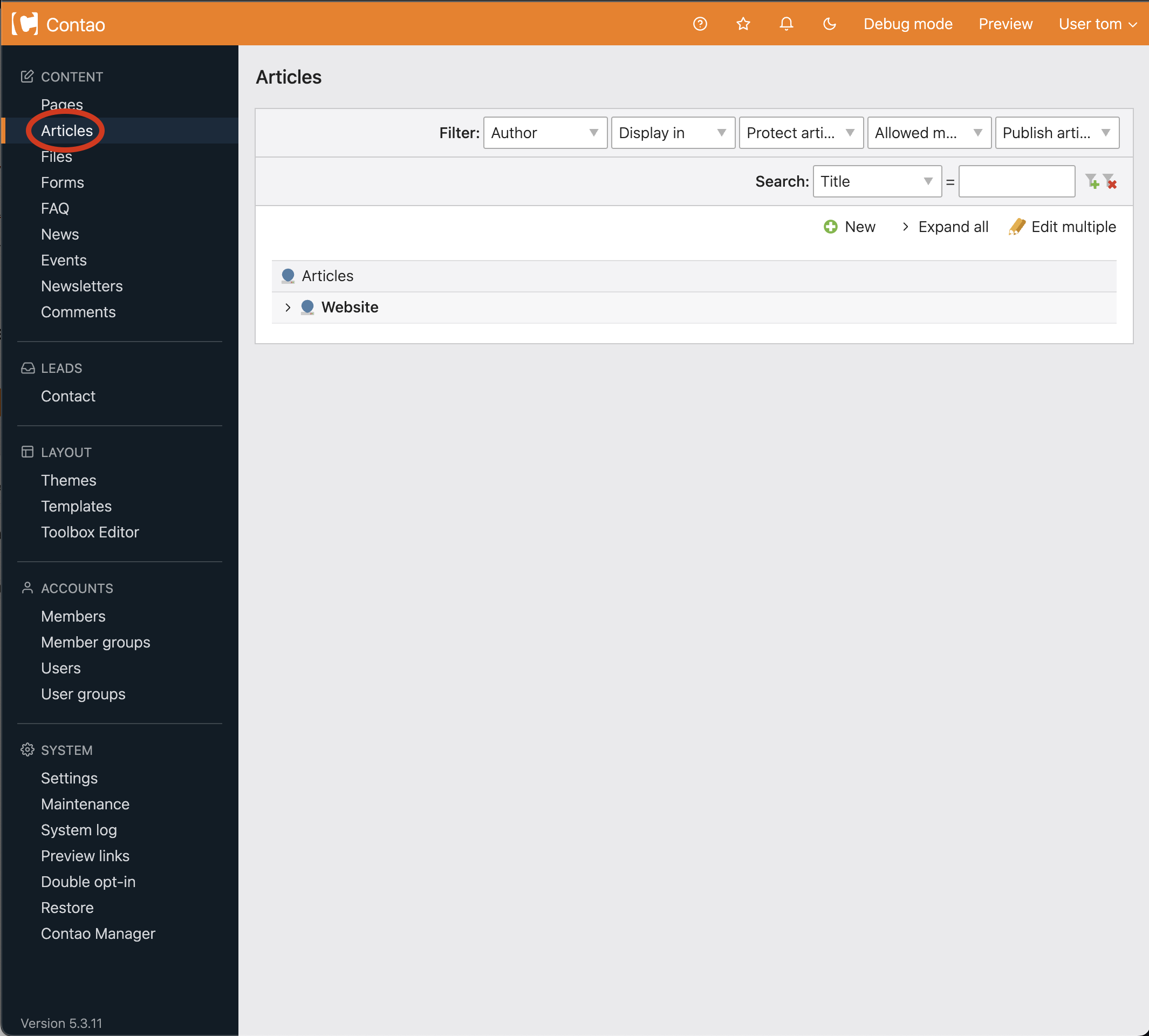
Choose Articles from the navigation (circled below).
Step 2
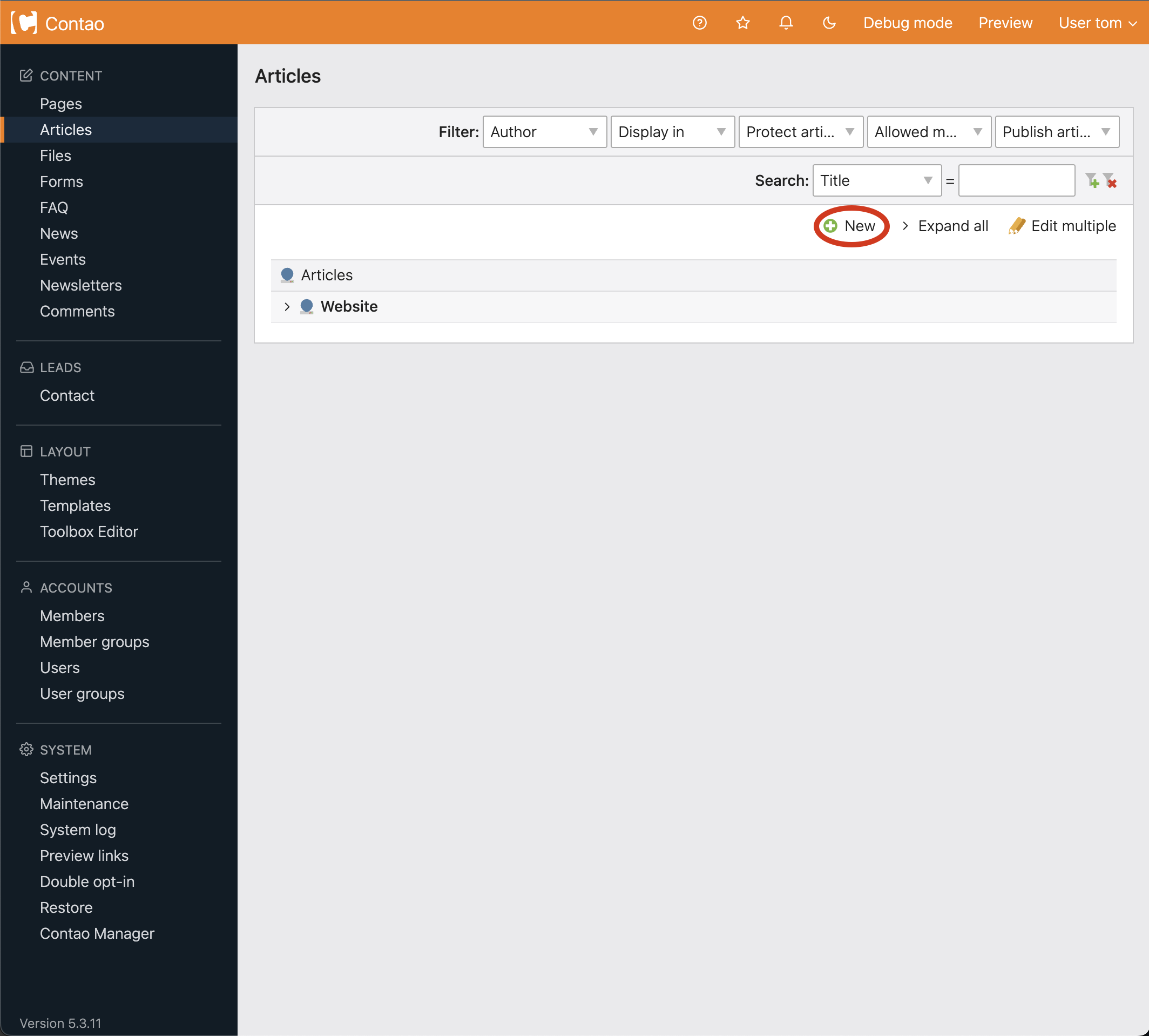
You will be brought to the Articles homepage. From here you can add a new article by choosing New (circled below).
Step 3
Once you choose new article, arrow icons will appear. These icons will allow you to put the new article into a page. You can place it before or after other articles in the page.
 Arrows will appear. Choose the arrow to paste your article in the appropriate place.

Step 4
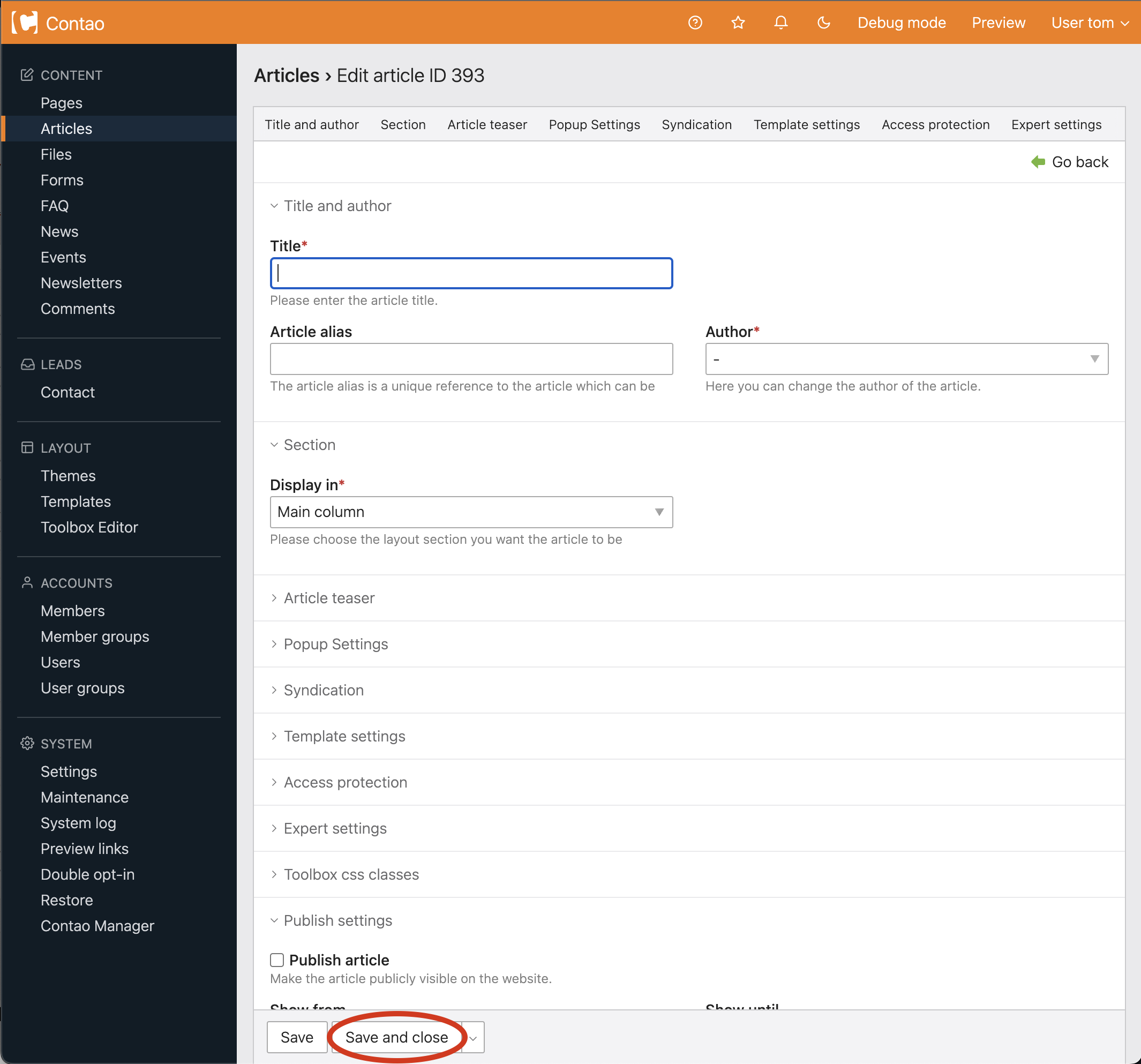
After clicking the arrow you are brought to a page to fill in information. Fill out each appropriate field:
Title
This is an internal title of the article. Name it something relevant.
Display in
Make sure your article is displaying in the correct section of your website.
- If you want your article in the "Main" portion of your site, choose "Main Column"
- If you want your article in the right column of your website, you would choose "Right Column."
Publish article
Toggle this option to make the article visible or invisible. Note, this only hides the article and not the page.
Show from
If you enter a date here, the current article will not be shown on the website before this day. Click the calendar to choose a date.
Show until
If you enter a date here, the current article will not be shown on the website after this day. Click the calendar to choose a date.
Choose save and close at the bottom of the page (circled below).
Once your page has been created, you will notice there still is no content on this page.
The next step is to create content elements inside your article.