
Create a New Page
Step 1
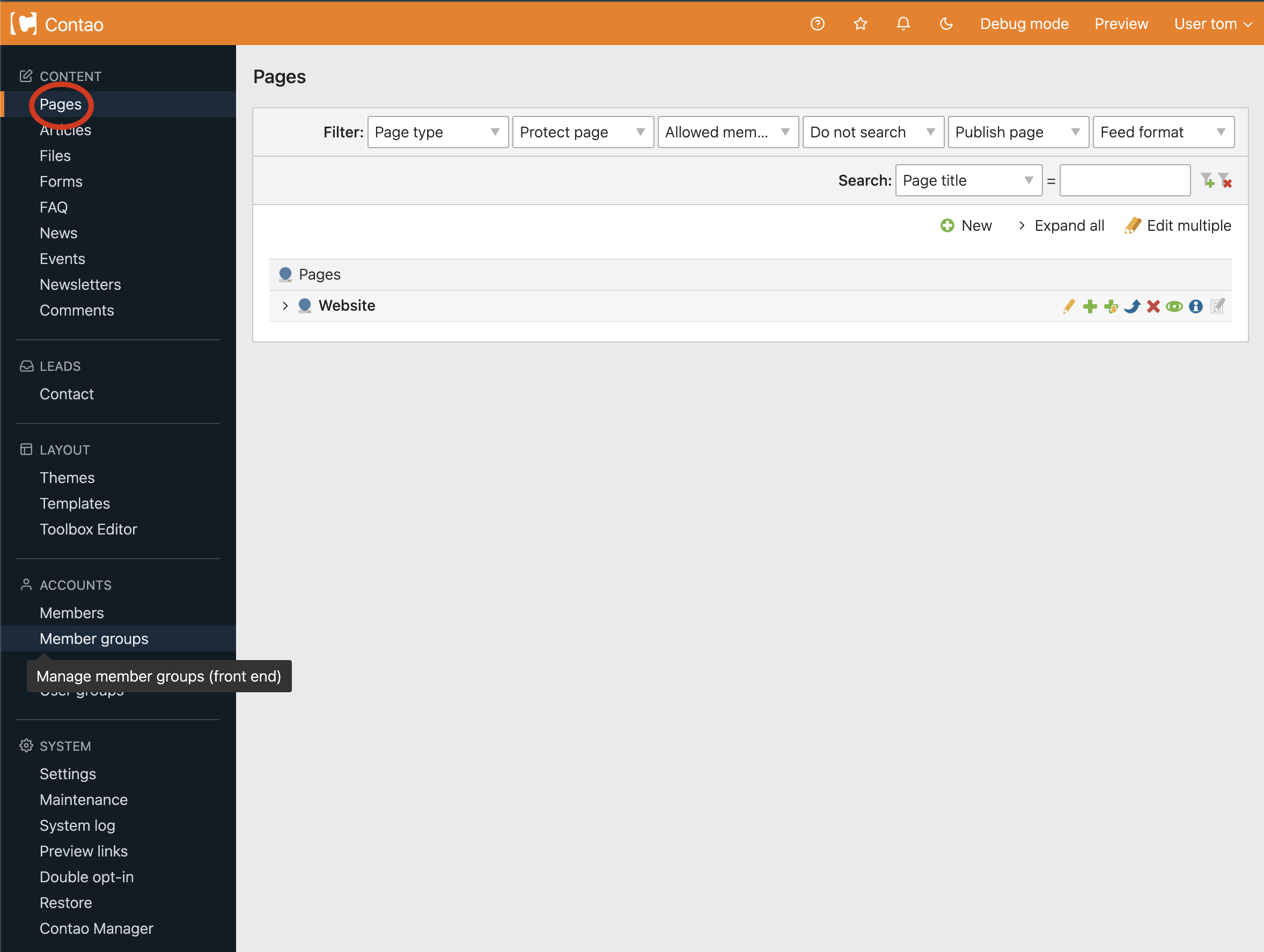
Choose Pages from the navigation (circled below).
Step 2
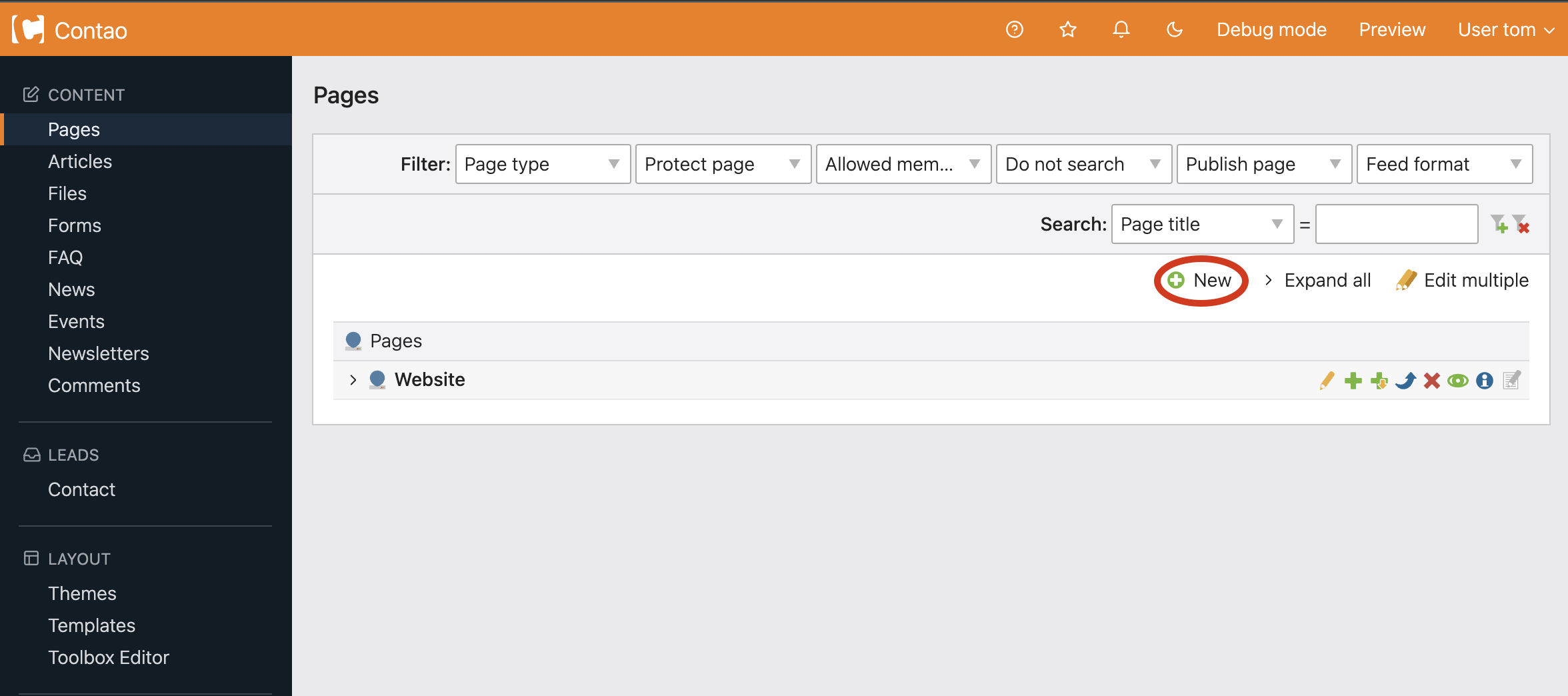
You will be brought to the Pages homepage. From here you can add a new page by choosing New (circled below).
Step 3
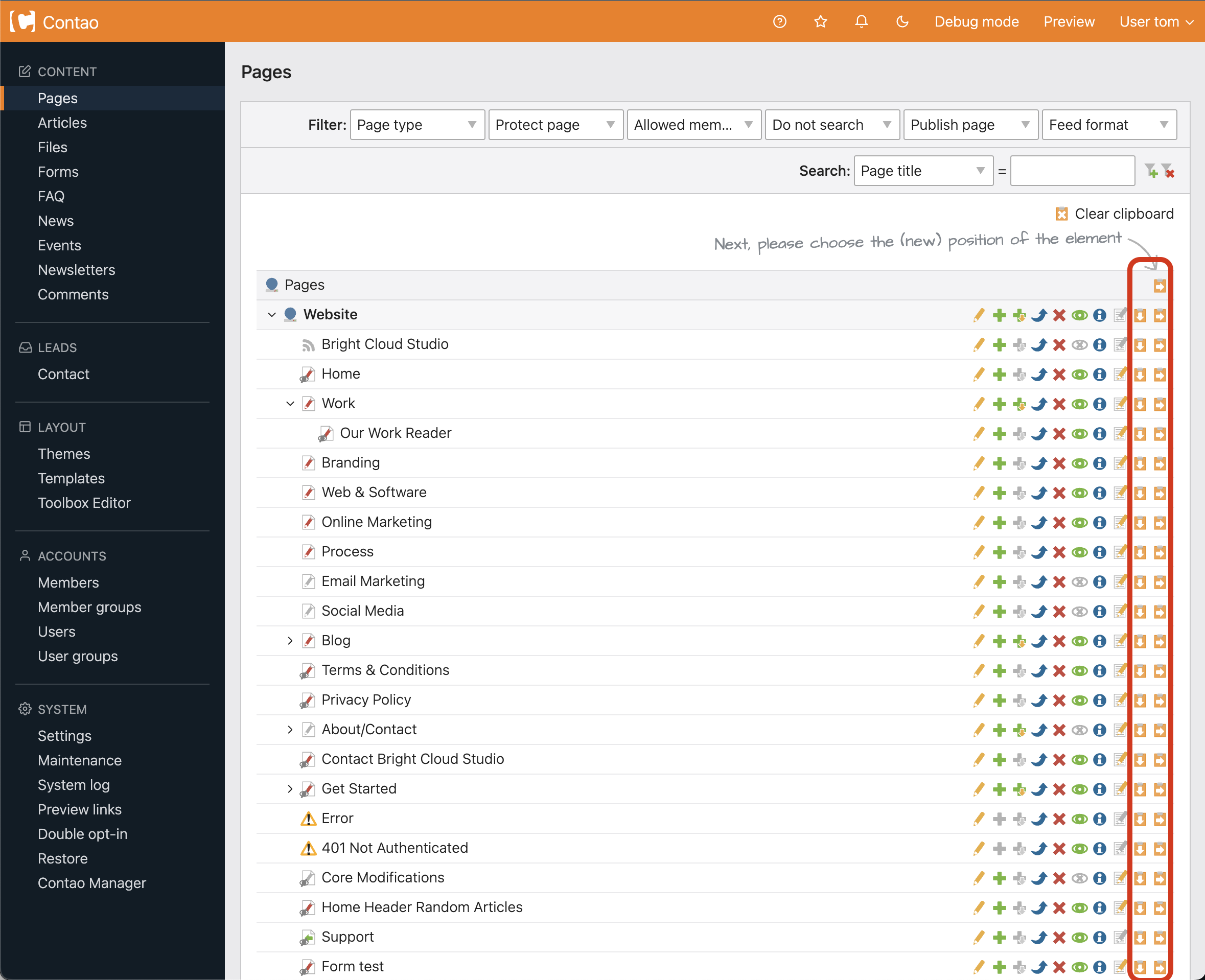
Once you choose new page, arrow icons will appear on the right. These icons will allow you to place your new page in different spots on your website (circled below). Click this arrow to paste the new page after the page selection. Notice how The academy page has been pasted after the Home page.
  Click this arrow to paste the new page into the page selection. This is how you will create sub-pages. Notice how the Latest news page has been pasted into The academy page.
Step 4
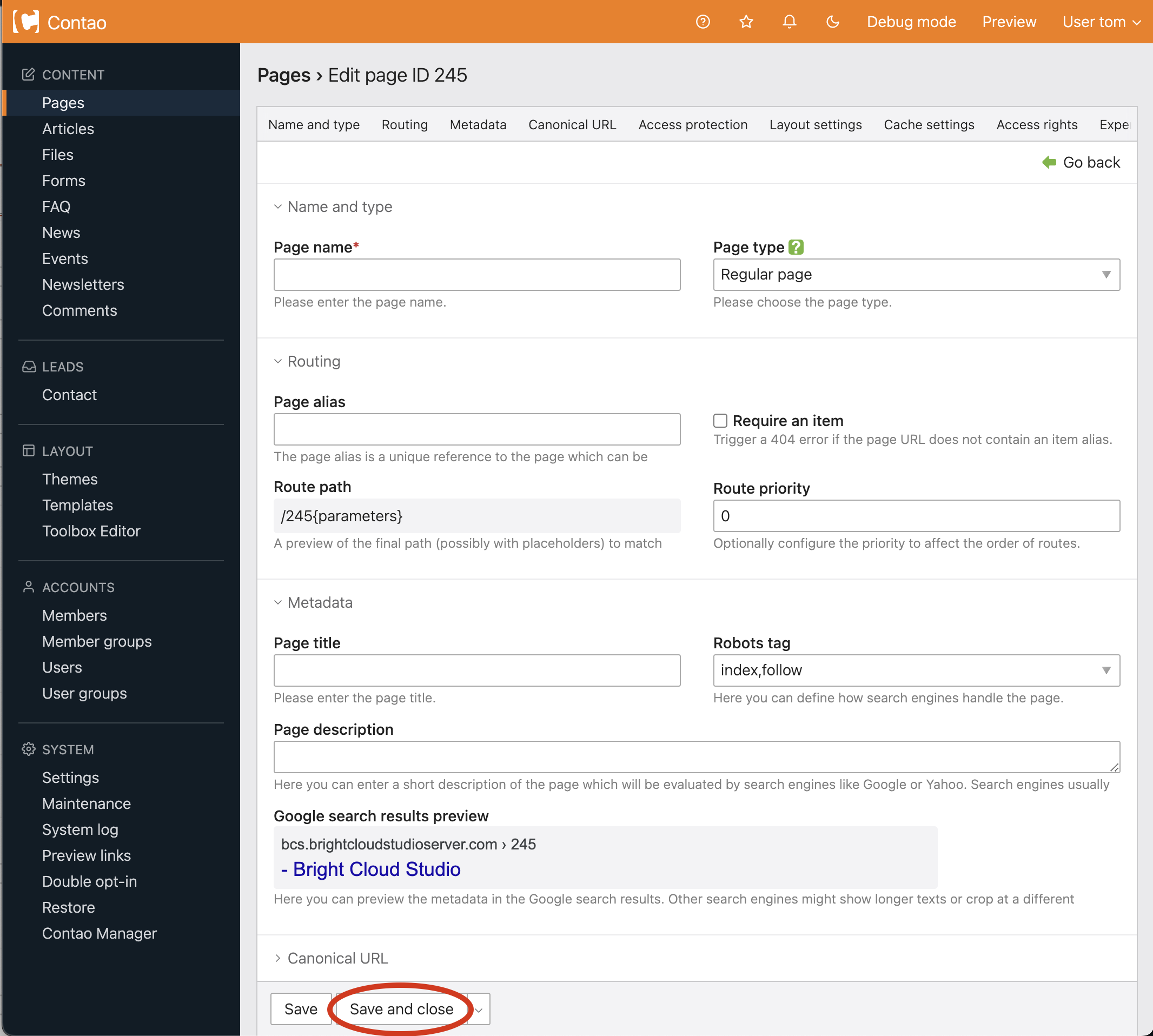
After clicking the arrow you are brought to a page to fill in information. Fill out each appropriate field:
Page name: The name of a page is shown in the website navigation.
Page type:
- Regular page: The default page. Use this for all content pages
- External redirect: Will link visitors to another website
- Internal redirect: Will link visitors to another page within your website.
Page alias: The name of the page in the url. There cannot be any spaces. Leave this blank for the system to create the alias from the page name. i.e.: contact.html
Most of the time you will choose Regular Page
Robots tag: Tell the page to be searchable in search engines or not searchable in search engines.
There are 4 options, but you only need to use two:
- index, follow: Will let the page be indexed in search engines
- no index, no follow: Will tell the search engines to not index this page
Most of the time you will choose index, follow
Page description: This is an optional field where you can describe the page of your website for search engines to index. A search engine usually indicates between 150 and 300 characters.
Do not search: Exclude the page from the internal website search. This does not exclude it from being archived in search engines (Robots tag).
Most of the time you will leave unchecked to keep in search results
Show in sitemap: Your website may have a site map page which lists all the pages on your website. Sitemaps are good for search engines and they make it easy for visitors to your website find your pages. However, there may be some pages you do not want visitors to get to. You can hide these from the sitemap.
- Default & Show always: Will show the page in the sitemap
- Show never: Will keep the page out of the sitemap
Most of the time you will choose Default
Hide in navigation: If you choose this option, the current page will not be shown in the website navigation but it is still a live page. You can link to it from another page, it will show in the sitemap and it can be found by when searched.
Publish page: Toggle this option to make a visible/invisible page. You can create your new page and make it a live page at a later date.
Show from: If you enter a date here the current page will not be shown on the website before this day. Click the calendar to choose a date.
Show until: If you enter a date here the current page will not be shown on the website after this day. Click the calendar to choose a date.
Choose save and close at the bottom of the page (circled below).
You have just created a page to hold the structure of your website. You will notice there is still no content on this newly created page.
The next step is to create an article for your page.